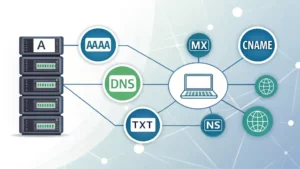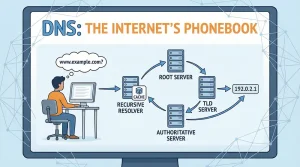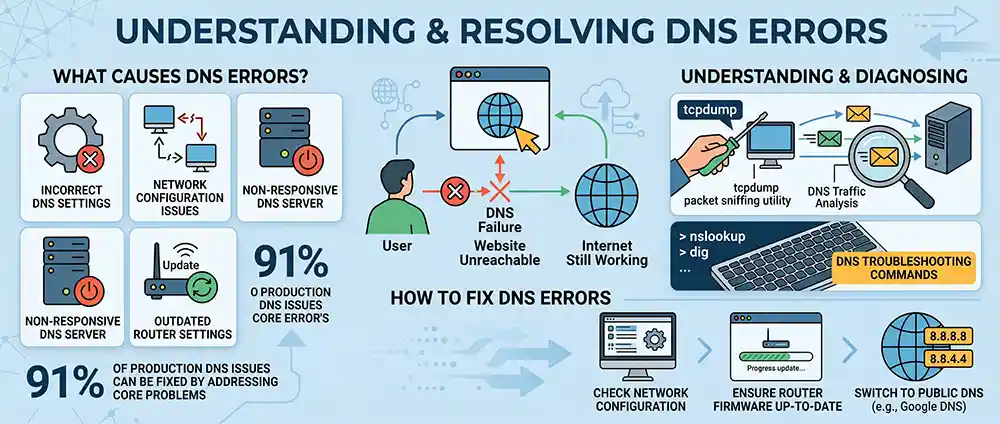
DNS errors occur when the Domain Name System fails to translate domain names into IP addresses. This can result from incorrect DNS settings, network configuration issues, or a non-responsive DNS server. A staggering 91% of DNS issues in production can be fixed by addressing these core problems. When DNS fails, the internet doesn’t stop working, but name resolution does, causing websites to become unreachable.
Understanding what causes DNS errors is crucial for network stability. These errors often stem from a misconfigured DNS server or outdated router settings. Recursion issues can also arise if the DNS server is improperly configured, leading to failed queries and disrupted internet access. Additionally, improper zone transfer configurations can lead to incomplete DNS records, further complicating the resolution process. Issues can also arise when an authoritative DNS server is unreachable, leading to delays or failures in domain name resolution. For instance, if your DNS server is not responding over WiFi, you might experience intermittent connection issues. Tools like tcpdump can help diagnose these problems by capturing network packets and analyzing DNS traffic. This is where DNS troubleshooting commands become invaluable, allowing you to pinpoint the exact cause of the issue.
Start by checking your network configuration. Ensure your DNS settings are correct and update your router firmware if necessary. If problems persist, consider switching to a public DNS server like Google’s. For additional guidance, the Netgear team offers insights into resolving DNS errors effectively.
Table of Contents
Understanding DNS Server Problems
Frequent Problems
DNS server problems can disrupt your online activities, causing frustration. Common issues include the server not responding, slow DNS resolution, and incorrect DNS settings or network configuration. These problems often lead to users repeatedly experiencing connectivity issues, especially when using WiFi. If you keep getting DNS-related errors, it might be time to investigate further.
- Server Not Responding: This occurs when the DNS server fails to process requests. It may be due to server overload or network outages.
- Slow DNS Resolution: Delays in converting domain names to IP addresses can slow down browsing. This is often caused by high latency or outdated DNS records.
- Incorrect DNS Settings: Misconfigured DNS settings can lead to failed connections. Always verify your DNS server settings in your network configuration.
What Causes DNS Errors?
Several factors contribute to DNS errors. Network misconfigurations, outdated router firmware, and ISP problems are common culprits. If your DNS server is not responding over WiFi, it might be due to weak signal strength or interference. Using tools like tcpdump can help diagnose these issues by analyzing DNS traffic.
- Network Misconfigurations: Incorrect network settings can prevent DNS servers from functioning properly. Double-check your DNS server settings and ensure they match your ISP’s recommendations.
- Outdated Router Firmware: Routers with outdated firmware may not handle DNS requests efficiently. Regular updates can resolve these issues.
- ISP DNS Issues: Sometimes, the problem lies with your Internet Service Provider’s DNS servers. Switching to a public DNS server like Google’s can often resolve these issues.
For a deeper understanding of how DNS functions within networks, consider exploring DNS in Networking – How the Domain Name System Works. Additionally, LogMeIn provides valuable insights into identifying and fixing DNS errors.
Quick Fixes for DNS Errors on Different Devices
DNS Errors on Windows 7
Windows 7 users often face DNS server issues due to outdated configurations or network settings. Start by checking your network adapter settings. Ensure the DNS server addresses are correct. Use commands like ipconfig /flushdns to clear the DNS cache. If problems persist, reset the TCP/IP stack using netsh int ip reset. This can resolve many connectivity issues.
- Verify DNS server settings match ISP recommendations.
- Use ipconfig /flushdns to clear cached data.
- Reset TCP/IP stack with netsh int ip reset.
Resolving DNS Errors on PS5
Experiencing DNS server not responding errors on your PS5? This often happens when the console struggles with default DNS settings. Switch to a reliable public DNS server like Google’s (8.8.8.8) or Cloudflare’s (1.1.1.1). Adjust these settings in the network configuration menu. If you keep getting connectivity issues, restart your router. This can refresh the connection and resolve intermittent problems.
- Change DNS settings to 8.8.8.8 or 1.1.1.1.
- Restart the router to refresh connections.
- Check for firmware updates on your router.
Handling DNS Errors on WiFi
WiFi connections can suffer from DNS server not responding issues due to signal interference or incorrect configurations. First, ensure your router is placed optimally to avoid interference. If you keep getting DNS errors, access the router settings and verify the DNS server information. Sometimes, switching to a public DNS server can resolve persistent issues. For more detailed insights, visit Quora.
- Optimize router placement to reduce interference.
- Verify and update DNS server settings in the router.
- Consider switching to a public DNS server.
To grasp DNS server functionality, read What Is a DNS Server and How Does It Work? Essential Information.
Sophisticated DNS Diagnostic Methods
Employing DNS Diagnostic Commands
Start with the basics. Use dns troubleshooting commands to identify issues. Commands like nslookup and ping help verify DNS server responses. Execute nslookup to check if the DNS server resolves domain names correctly. Use ping to test connectivity to the server. If the server fails to respond, the issue might be with the network or the server itself.
- Nslookup: Verify domain resolution.
- Ping: Test server connectivity.
- Ipconfig /flushdns: Clear DNS cache.
Checking DNS Cache and Server Responses
DNS cache can cause repeated issues if outdated. Use ipconfig /flushdns to clear the cache on Windows. This ensures fresh queries to the DNS server. If you keep getting dns errors, check server responses. Use tracert to trace the path packets take to reach the server. This helps identify where the failure occurs.
- Ipconfig /flushdns: Clear outdated cache.
- Tracert: Trace packet paths.
- Ensure server responses are consistent.
Analyzing with Tools like Dig and Tcpdump
For deeper analysis, use tools like dig and tcpdump. Dig provides detailed DNS query information, useful for verifying DNS server configurations. Tcpdump captures network traffic, allowing you to analyze DNS packets. This is crucial when you keep getting dns issues without clear cause.
- Dig: Detailed query analysis.
- Tcpdump: Capture and analyze network traffic.
- Identify incorrect DNS settings or network configuration.
These techniques help pinpoint what causes dns errors. Whether it’s isp dns issues or outdated router settings, the right tools and commands can fix them efficiently.
Comparing Public DNS Servers: Google vs. Cloudflare
Benefits of Using Public DNS
Public DNS servers offer a reliable alternative to your ISP’s DNS. They can improve speed, security, and privacy. When your DNS server is not responding over wifi, switching to a public DNS can resolve the issue. Public DNS servers often have faster response times and enhanced security features. They also help reduce DNS latency, leading to quicker website load times.
- Speed: Public DNS servers like Google and Cloudflare are optimized for performance.
- Security: These servers offer protection against phishing and other threats.
- Privacy: Some public DNS providers do not log your browsing history.
Google DNS vs. Cloudflare DNS
Google DNS and Cloudflare DNS are two of the most popular public DNS services. Both aim to reduce DNS issues, but they have different strengths. Google DNS is known for its speed and reliability. It uses IP addresses 8.8.8.8 and 8.8.4.4. Cloudflare DNS, on the other hand, focuses on privacy and security. It uses IP addresses 1.1.1.1 and 1.0.0.1.
| Feature | Google DNS | Cloudflare DNS |
|---|---|---|
| Speed | High | High |
| Privacy | Logs some data | No logs |
| Security | Basic protection | Enhanced protection |
When you keep getting DNS errors, switching to a public DNS server can be a quick fix. Google DNS is ideal for those who prioritize speed and reliability. However, if privacy is your main concern, Cloudflare DNS is the better choice. Both services provide effective solutions to common DNS issues, enhancing internet performance.
Frequently Asked Questions
How do I fix a DNS error?
To fix a DNS error, first try restarting your router or modem. If the issue persists, switch to a public DNS server like Google DNS (8.8.8.8) or Cloudflare DNS (1.1.1.1). These servers can resolve dns errors by providing more reliable and faster DNS resolution. Additionally, check your network settings to ensure they are correctly configured.
What are common DNS errors?
Common DNS errors include ‘DNS server not responding’, ‘DNS address could not be found’, and ‘DNS probe finished no internet’. These errors often occur due to misconfigured network settings, ISP issues, or outdated router firmware. Switching to a public DNS server can help mitigate these dns errors.
Is 208.67.222.222 a good DNS?
Yes, 208.67.222.222 is a good DNS. It is one of the IP addresses for OpenDNS, a popular public DNS service known for its reliability and security features. OpenDNS can help reduce dns errors by providing a stable and secure DNS resolution service.
What is a DNS error example?
A DNS error example is ‘DNS server not responding’. This error indicates that your device cannot connect to the DNS server, preventing access to websites. It can be caused by network configuration issues, ISP problems, or a faulty router. Switching to a reliable public DNS server can often resolve this issue.
Ensuring Reliable DNS Performance
Identifying Constant DNS Errors
Persistent DNS issues can severely impact network performance. Frequent DNS server failures often stem from incorrect DNS settings or network configuration. To troubleshoot these issues, start with basic DNS troubleshooting commands like tcpdump to capture traffic and identify anomalies. This tool helps pinpoint what causes DNS errors by analyzing packet data.
Resolving DNS Server Not Responding on WiFi
When your DNS server is not responding on WiFi, the problem often lies in the router or ISP DNS issues. First, verify if the router firmware is outdated. Update it if necessary. Next, switch to a public DNS server like Google’s (8.8.8.8) or OpenDNS (208.67.222.222) to see if it resolves the issue. If you keep getting DNS errors, it might be due to network interference or a faulty router.
Utilizing DNS Troubleshooting Commands
Effective troubleshooting requires the right tools. Use tcpdump to capture and analyze DNS traffic. Checking root hints can help ensure your DNS server is correctly directing queries to authoritative servers. Commands like ipconfig/flushdns can clear cached data, potentially resolving ISP DNS issues. If you keep getting DNS errors, these steps can help isolate the root cause. For persistent issues, consult the Netgear team or your ISP for further assistance.
- Check router firmware updates.
- Switch to a public DNS server.
- Use tcpdump for packet analysis.
- Consult ISP for persistent issues.
Author Expertise: With over a 15+ years of hands-on experience resolving network propagation failures across 200+ enterprise networks, with Cisco certification in network management. Every guide on this site is based on real-world configurations, not documentation summaries.